Crystal Bulk Database Change
Change the database logon of many Crystal Reports at once from the MetaMiner Client (MMC), instead of editing each report's database configuration in the CMC.
Goal
A database moves to a new server, database name or schema. Every Crystal Report that reads it must point to the new location. In the CMC you change this report by report under Database Configuration:
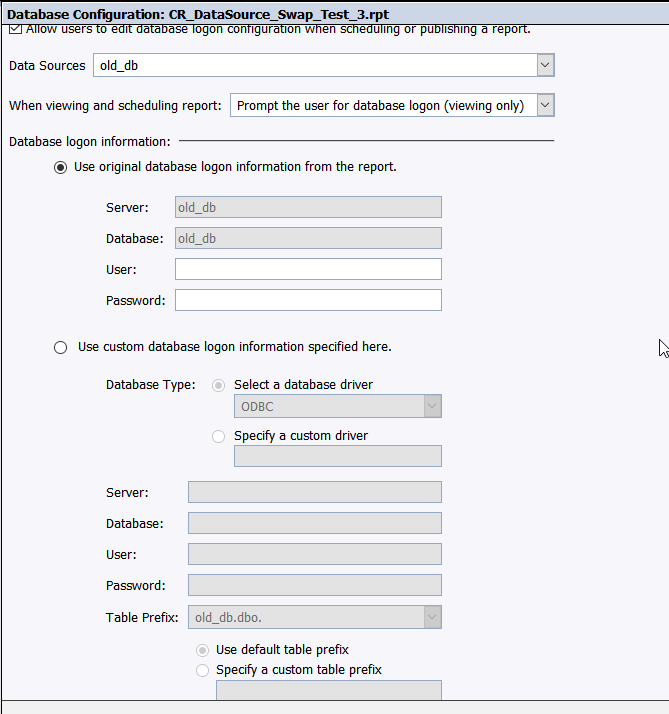
With MetaMiner you select all affected reports and change the same settings in one operation.
Video walk-through:
Who
BI administrators responsible for Crystal Reports.
Before you begin
- You have the MMC permission Modify Crystal Logon Info (and Modify Extended Properties for method B). See Permissions Reference.
- Back up the reports first, with a Backup/Promote job or Save as BIAR Backup....
- Write down the target settings from the new data source:
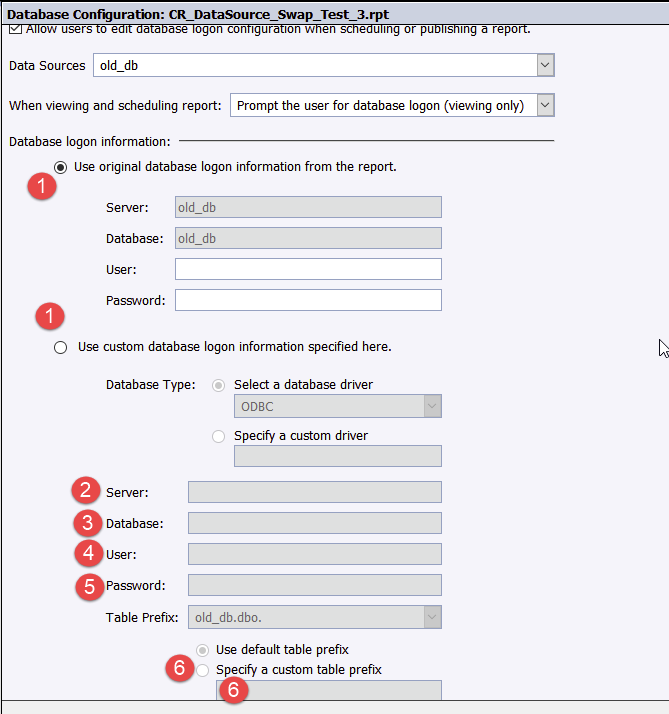
| Item | CMC setting | Value to use |
|---|---|---|
| 1 | Use original or custom database logon information | Custom, because you move to a new data source |
| 2 | Server | Usually the ODBC DSN name |
| 3 | Database | The database behind the DSN |
| 4 | User | The database user |
| 5 | Password | The database user's password |
| 6 | Table Prefix | The new database or schema prefix, if it changes |
Do not change the configuration in the CMC
Use the CMC only to look up the current values. Make the change from the MMC so all reports get the same settings.
Steps
Find the reports
- Run MM-C16 Data Source Use or MM-C15 DB User Use to list the reports that use the old data source.
- In the CMS Explorer, filter to those reports and select them. Use Filters and Search.
Method A: Crystal Logon Info
- Right-click the selected reports and choose Modify > Crystal Logon Info....
- In Modify Logon Info for Crystal Reports, enter the new server, database, user, password and table prefix, and apply.
Image of the Modify Logon Info for Crystal Reports dialog with new server and database entered here
../images/use-cases/crystal-modify-logon-info.png
TODO: document the fields and options of the Modify Logon Info for Crystal Reports dialog
Check the dialog on a current build and list its fields, the original/custom choice and how table prefixes are handled.
Method B: Modify Extended Properties
-
Right-click the selected reports and choose Modify > Modify Extended Properties....
Image of the CMS Explorer right-click Modify submenu with Crystal Logon Info and Modify Extended Properties here
../images/use-cases/crystal-modify-submenu.png -
Type
logon1in the search box to limit the tree to the logon properties under SI_LOGON_INFO.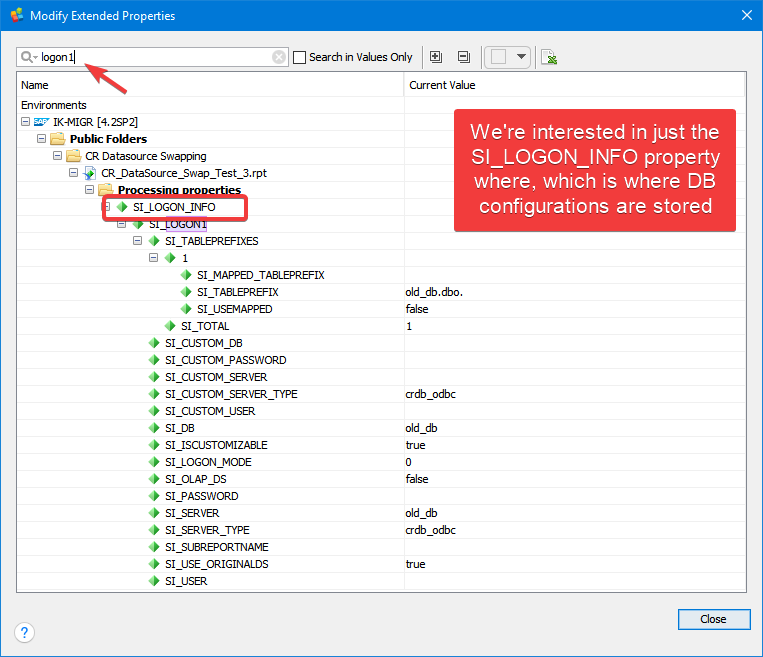
-
Each CMC setting maps to a property:
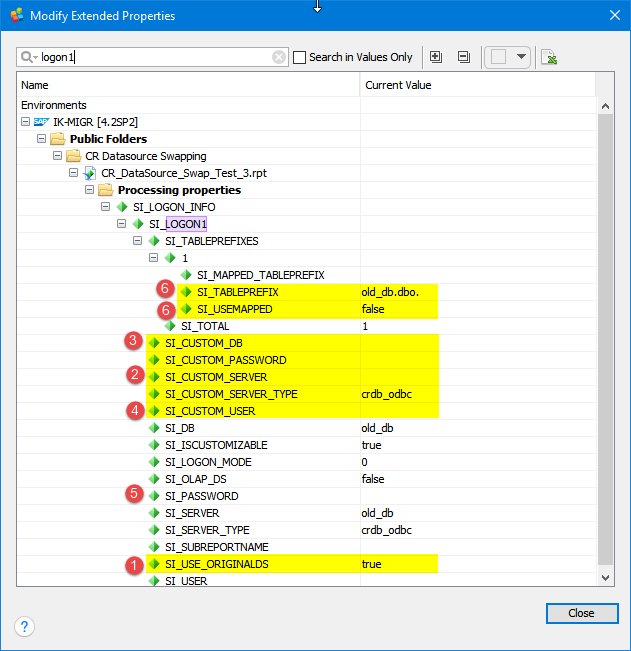
CMC setting Property Value for a custom logon Use original database logon information SI_USE_ORIGINALDSfalseServer SI_CUSTOM_SERVERnew server or DSN Database SI_CUSTOM_DBnew database User SI_CUSTOM_USERdatabase user Password SI_CUSTOM_PASSWORDdatabase password Specify a custom table prefix SI_TABLEPREFIXES>SI_MAPPED_TABLEPREFIX,SI_USEMAPPEDnew prefix, true -
Change the values and apply them to all selected reports.
Verify
- Open one changed report's Database Configuration in the CMC: Use custom database logon information is selected with your values.
- Refresh the report in BI launch pad.
- Press F5 in the MMC to reload metadata, then run MM-C16 again: the reports now list the new data source.
Variations
- Many reports, different targets: run IK-027 Crystal Logons Bulk Update Query from the SQL Script Catalog to build the list of reports and logons to change.
- Universes and Web Intelligence too: see Repoint Reports to a New Database.