Report Validation
Run sets of Web Intelligence reports on a schedule, save their output, and compare it over time or between two environments.
License and permission
The Report Validation tab appears when your license includes Report Validation, at least one BusinessObjects environment is loaded, and your MetaMiner role grants Tab: Report Validation on every loaded BusinessObjects environment. To add Report Validation to your license, contact Infolytik. See Permissions Reference and Editions and Licensing.
How it works
You define a report set: a list of Web Intelligence reports, their prompt answers and a schedule. At each run the MetaMiner Server (MMS) refreshes every report, saves a PDF (and optionally XML and structure) output, and compares it:
| Report set | Compared with | Typical use |
|---|---|---|
| One-sided | The previous output of the same report. | Detect unexpected changes in production reports over time. |
| Two-sided | The matching report in a second environment. | Validate a migration, upgrade or database change across environments. |
Each run produces a report set output. You can view and compare outputs in the client, and get an e-mail when a difference or failure is found.
Report Validation works with Web Intelligence reports.
Tab layout
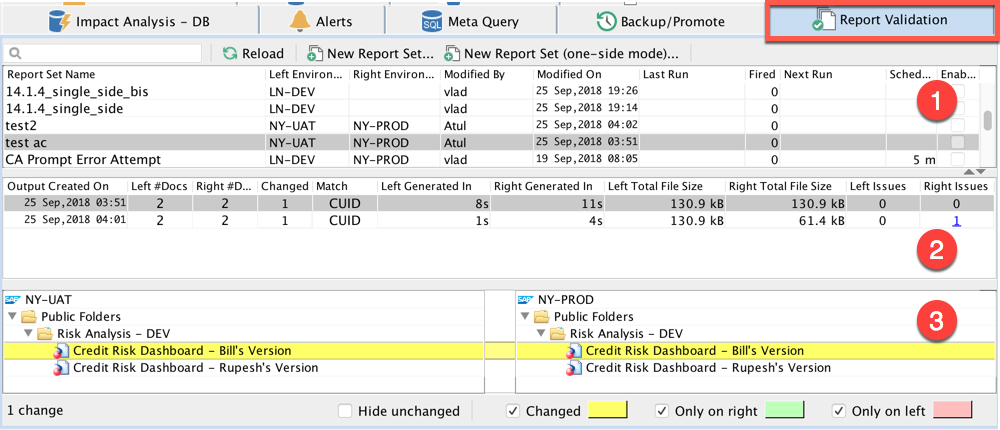
| Panel | What it shows |
|---|---|
| Report sets (top) | Report Set Name, Left/Right Environment, Modified By/On, Last Run, Executed, Next Run, Schedule. |
| Report set outputs (middle) | Outputs of the selected set: Output Created On, #Documents (Left/Right #Docs), Changed, Match, Generated In, Total File Size, Issues, Previous Diff. |
| Report compare pane (bottom) | For the selected output, the left and right report trees with differences highlighted. List or Path view. |
Toolbar: Reload, New Report Set... (two-sided), New Report Set (one-side mode)....
Create a report set
Before you begin
- Run each report once in BI launch pad to confirm it refreshes and to know which prompts it needs.
- Check free disk space for outputs (see Administration).
Steps
- Click New Report Set (one-side mode)... or New Report Set.... The Add New Report Set dialog opens with the tabs General, Schedule, Notifications, Advanced and Run as.
- On General, enter Name and optional Description, and pick the environment (two-sided: left and right environments; they must differ).
- Choose the Report source for each side:
- Choose report wizard: click Choose Reports and move reports from the left list to the right list. Tick Show instances to pick instances.
- SQL: click Modify SQL and enter a query against the MetaMiner Database (MMDB). It must return a String
column named exactly
cmsidand a String column whose name ends withcuid. Preview shows the resolved reports.
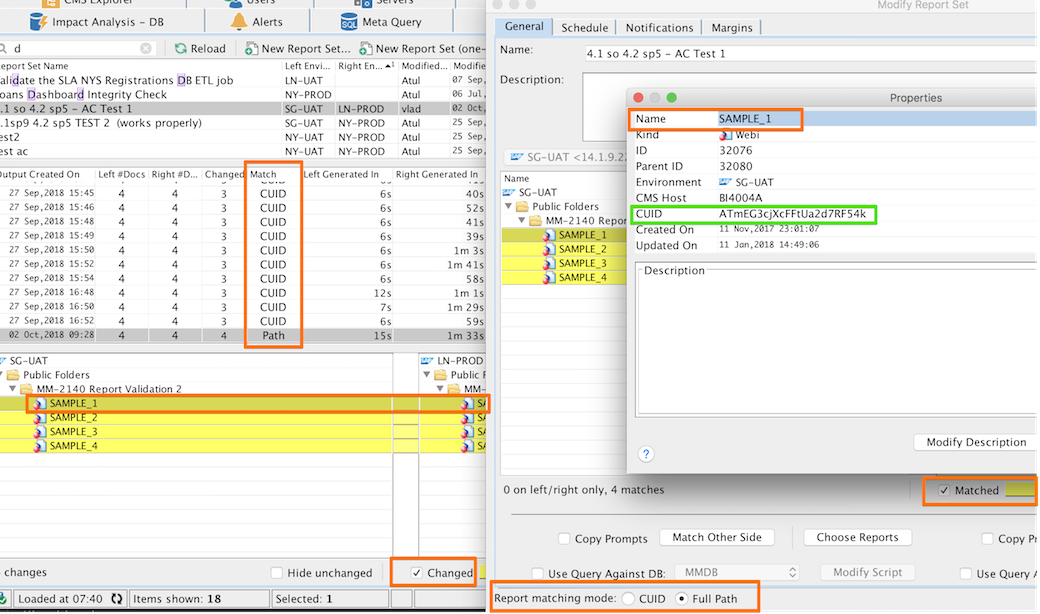
- Two-sided only: choose the Report matching mode (see below). Click Match Other Side to fill the other side automatically; tick Copy answers to copy prompt answers to the matched reports.
- Enter prompt answers: select a report and choose Enter Prompts (or double-click). The Answers? column shows which reports have answers. MetaMiner reads the prompts and their values from the BI platform.
- Click OK to save.
- Right-click the new set and choose Run Now. Check that outputs are generated without issues before you schedule it.
Image of the Add New Report Set dialog, General tab, two-sided, with matched reports highlighted
../images/client/report-set-general.png
Report matching mode (two-sided)
| Mode | Matches reports by | Use when |
|---|---|---|
| CUID | Cluster unique identifier. | Reports were promoted between environments (they keep their CUID, even if renamed). |
| Full Path | Name and full folder path. | Reports were created separately in each environment with the same names and folders. |
| List Order | Position in the left and right lists. | You pair reports by hand. Both sides must have the same number of reports. Not available when a side uses SQL. |
The mode applies when you click Match Other Side (matches are highlighted), when the server compares outputs, in the Match column of outputs, and in the compare pane. You can change it later in Modify Report Set.
Advanced tab
| Group | Option | Effect |
|---|---|---|
| Output Options | Refresh reports on open | Refreshes each report when it is opened for the run. |
| Save Report after Open | Saves the report after it is opened. | |
| Generate PDF / Generate XML / Generate structure | Which outputs to produce. At least one is required. View and compare actions need the matching output. | |
| Margins | Exclude header / Exclude footer | Ignores the top or bottom part of each page (percentage of page height) in the PDF comparison, for example a run-date stamp. |
| PDF Compare Options | Stop comparing two PDF files after following number of differences | Limits the work spent on heavily changed reports. |
Run as tab
Tick Other user and enter a BusinessObjects username and password to refresh the reports as that user instead of the environment's MetaMiner account, for example to test row-level security.
Notifications tab
Tick Notify on changes? and enter To:, Cc:, Bcc: addresses. MetaMiner sends an e-mail when a report output difference is found, when the report set job fails, or when one report's output fails. Tick Attach comparison result as PDF to attach the comparison. Mail goes through the server SMTP settings in Email settings.
Schedule a report set
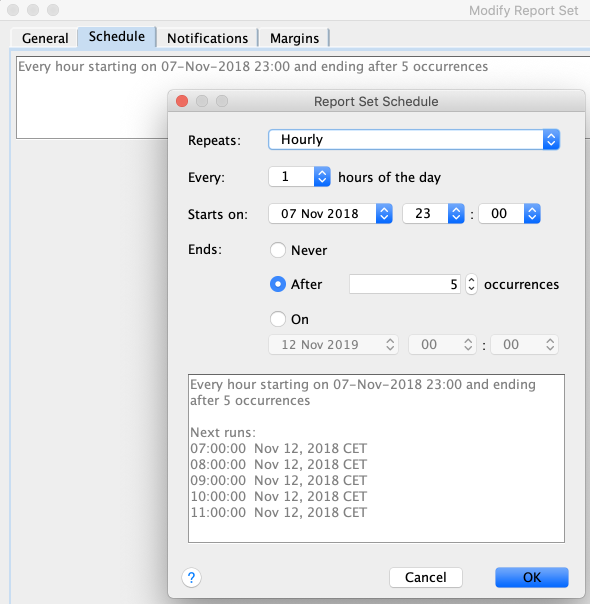
- Right-click the set and choose Modify..., then open the Schedule tab and click Modify Schedule.
- Choose Repeats: Minutes, Hourly, Daily, Every weekday (Monday to Friday), Weekly or Monthly. The first three have an Every field (for example Hourly, Every 2 = every 2 hours).
- Set Starts on (date and time) and Ends: Never, after a number of occurrences, or on a date.
- Check Next runs, which previews up to five upcoming runs.
- Click OK, tick Scheduling enabled at the bottom of the main dialog, and save.
Tip
Limit the number of occurrences to a few runs while you test, then extend it.
Run only if a query passes
Tick Run only if query pass on the General tab, click Modify Query, choose the DB: (MMDB or the CMS audit database) and enter a query. At each scheduled time the set runs only if the query returns one or more rows; for a two-sided set with a query on each side, both must return rows. Press Ctrl+Space in the editor to insert tokens.
| Token | Replaced with |
|---|---|
$ENV_SERVER$ |
The environment of this side. |
$LAST_TIME_REPORT_SET_PROCESSED$ |
When the scheduled check last ran. |
$LAST_TIME_REPORT_SET_FIRED$ |
When the set last produced an output. |
$REPORT_UIDS$ |
Comma-separated CUIDs of the reports in the set. |
$LEFT_SIDE_ENV_SERVER$ |
Two-sided only: the left environment. |
$LEFT_SIDE_REPORT_UIDS$ |
Two-sided only: CUIDs of the left-side reports. |
SELECT *
FROM documents d
WHERE d.cmsid = $LEFT_SIDE_ENV_SERVER$
  AND d.cuid IN ($LEFT_SIDE_REPORT_UIDS$)
  AND d.updated >= $LAST_TIME_REPORT_SET_FIRED$
LIMIT 1
SELECT TOP 100 aed.*
FROM ADS_EVENT ae
INNER JOIN ADS_EVENT_DETAIL aed ON aed.EVENT_ID = ae.EVENT_ID
WHERE aed.EVENT_DETAIL_TYPE_ID = 1
  AND aed.EVENT_DETAIL_VALUE LIKE '%Error: ERR_WIS%'
  AND ae.Start_Time > $LAST_TIME_REPORT_SET_FIRED$
Use the MMDB unless you need data only the audit database has (event details, rows per data provider).
Review outputs
Right-click an output in the outputs table:
| Action | What it does |
|---|---|
| View Reports (double-click) | Opens the outputs of the run. |
| View Report... / View Report Structure... / View Report XML... | Opens one report's PDF, structure or XML output. |
| View Report Prompt Answers | Shows the prompt answers used. |
| Mark for Compare | Marks the output for a later comparison. |
| Compare with Marked | Compares with the marked output (enabled after Mark for Compare). |
| Compare with Previous Output | Compares with the previous run (enabled when there is a difference). |
| Compare Report Structure... / Compare Report XML... | Compares structure or XML outputs of matched reports. |
| Delete... | Deletes the selected outputs from the server. |
Right-click a report set for Modify..., Run Now, Enable..., Disable..., Reset Run Count, Reset Status and Delete....
Compare PDF outputs
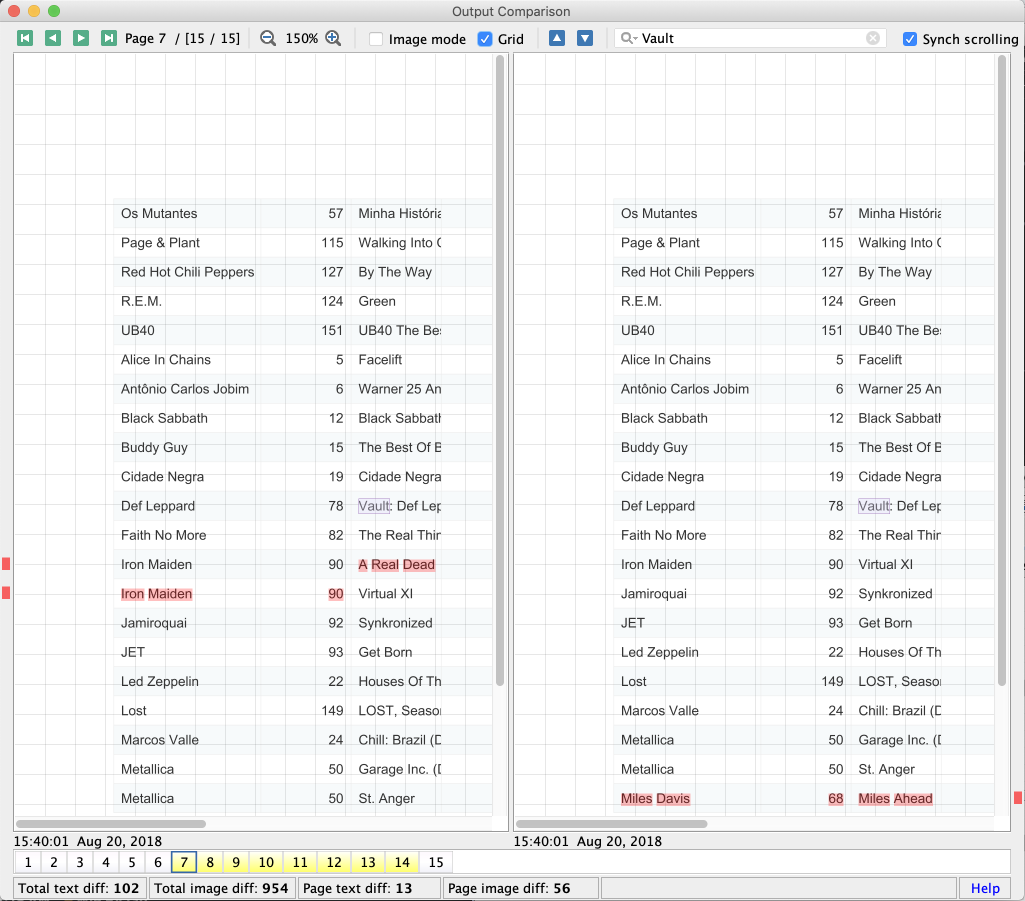
- Differences have a red background and a red marker in the left or right margin stripe.
- The first four toolbar buttons go to the first, previous, next and last page.
- The zoom control zooms the PDF. High zoom levels need more client memory.
- Image mode compares page images (best for charts). Clear it for text mode (best for text changes).
- The blue up and down arrows move to the previous or next difference on the page, outlined in blue.
- The page chooser at the bottom marks the current page with a blue border, pages with differences in yellow, and pages missing on one side in red.
Administration
| Item | Default | How to change |
|---|---|---|
| Report set definitions | server\validation under the install folder |
Back up this folder before a major upgrade, or copy it to move report sets to another server. |
| Outputs (PDF/XML/structure) | server\validation\output |
validationOutputPath in config.json properties. See Configuration Files. |
| E-mail attachment size limit | 15 MB | Server property email.attachment.size.limit.mb. See Server Properties. |
TODO: confirm whether customers set email.attachment.size.limit.mb in MetaMinerServer.properties or as a -D service variable
Troubleshooting
PDF generation is disabled for this report output
Tick Generate PDF on the Advanced tab of the report set and run it again. The same applies to XML and structure.
When using List Order matching mode you should have the same number of reports
Add or remove reports so both sides have the same count, or switch to CUID or Full Path.
Many false differences on every run
Run dates or times printed on the page differ each run. Use Exclude header or Exclude footer on the Advanced tab.