Installing New Releases
Get a new MetaMiner release and upgrade the server and the clients without losing configuration or metadata.
Before you begin
- Read the release notes of the new build. They state whether a metadata reset is needed after the upgrade.
- Decide which installer to use. See Full and Update Installers.
- Back up:
server\config\(configuration, includingconfig.json)server\licenses\server\MetaMinerServer.properties, if you created one- the MetaMiner Database; see Back Up and Restore MMDB
- Plan a maintenance window and tell client users. The installer stops the server and closes MetaMiner programs on the host.
Where releases are published
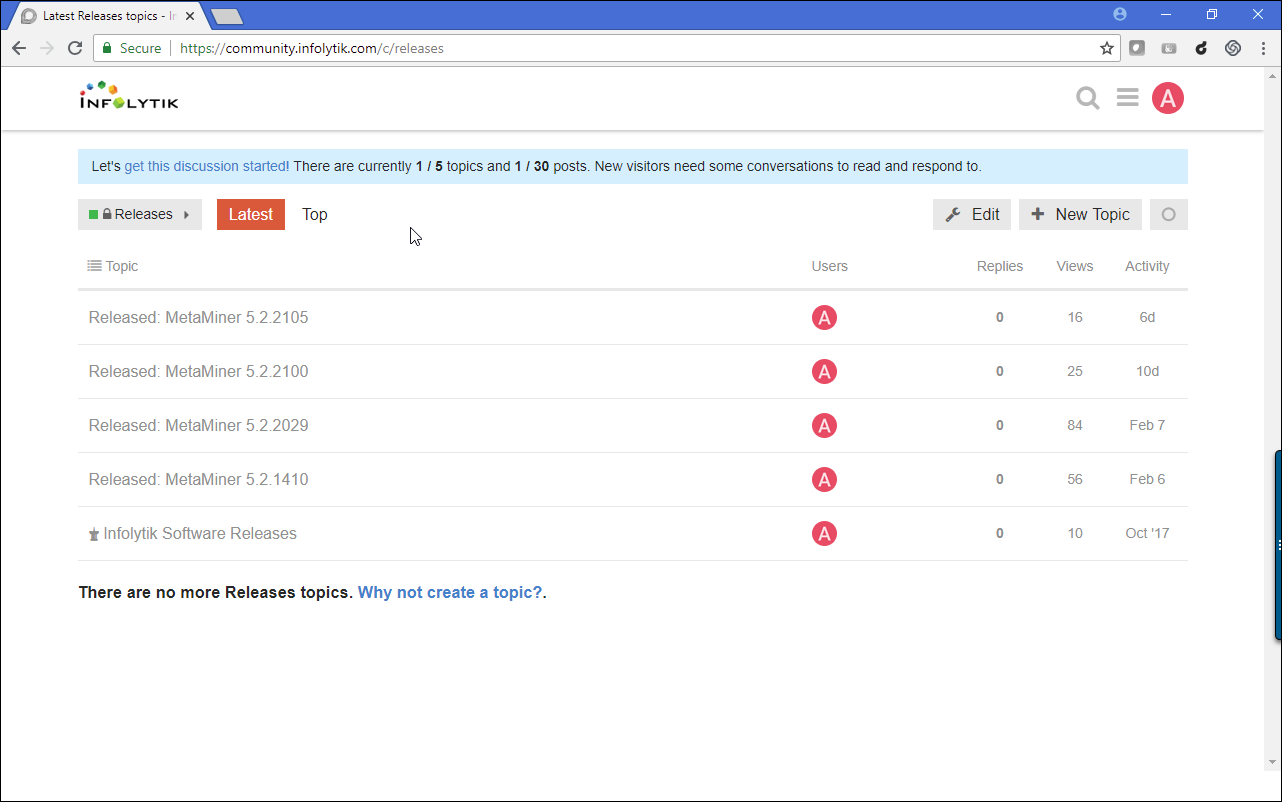
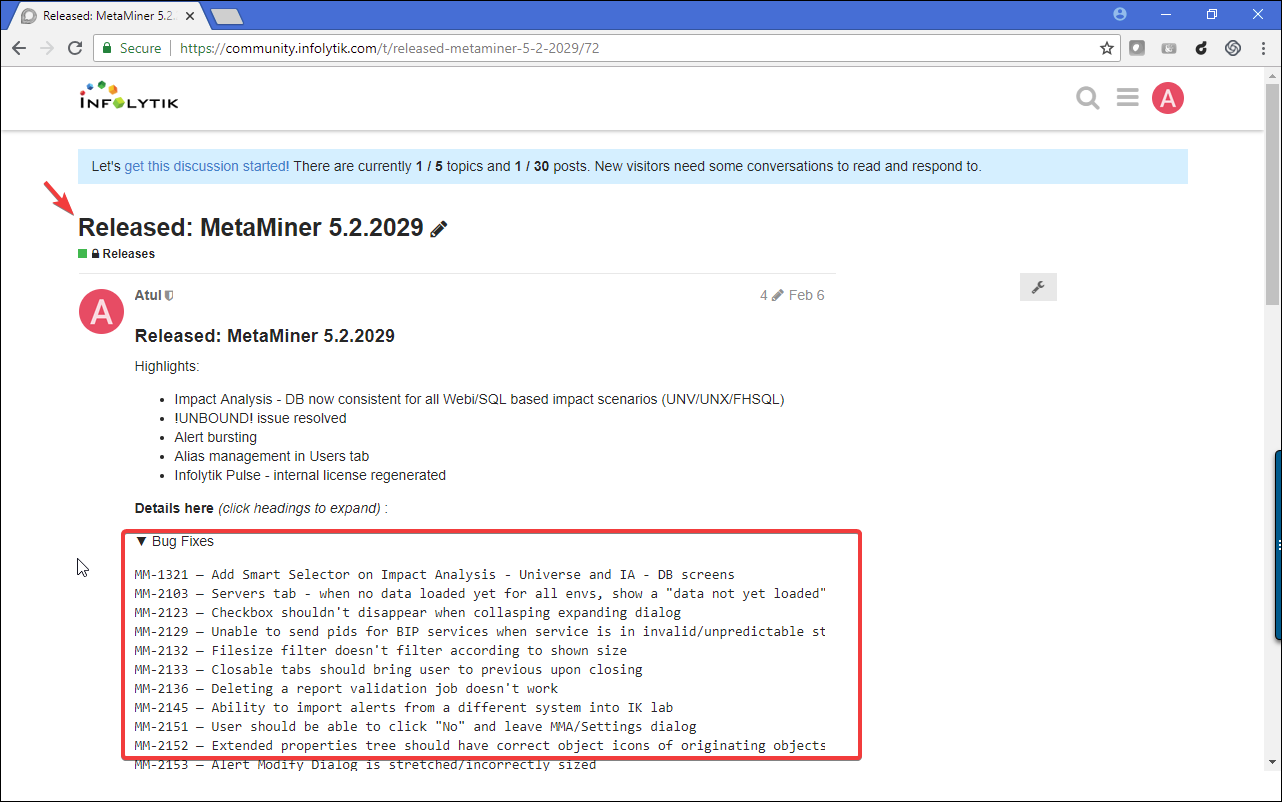
Releases are posted for customers in the Releases category of the Infolytik Community Portal. Each release topic has the release notes, the download links and any extra instructions for that release.
No portal login?
Contact Infolytik Support at support@infolytik.com. Access is for customers with current maintenance.
Steps
- Download the installer named in the release post to the MetaMiner server host.
- Optional: in the MetaMiner Administrator, click Stop Server and wait until the service has stopped. The installer stops it anyway, but stopping first lets you confirm a clean stop.
- Right-click the installer and choose Run as administrator. Install into the existing folder, normally
C:\Program Files\Infolytik\MetaMiner. The installer replaces the program files and keeps configuration, licenses, logs and MMDB data. It does not start the services. - Open the MetaMiner Administrator, check that the license and environments are shown, and click Start Server. The first start after an upgrade applies database updates. It can take noticeably longer than a normal start.
- Check
server\logs\slc.logforMetaMiner Service for Windows® startedand, for each environment,Initial Pull Done. - If the release notes ask for it, reset the affected metadata. See Resetting Metadata.
- Upgrade every client workstation with the client-only installer of the same build. See Install the Client.
What to check in the release notes
| Area | Look for | Action |
|---|---|---|
| MetaMiner Client | New or changed features | Inform users |
| MetaMiner Database | Schema changes, metadata that must be re-read | Resetting Metadata if stated |
| Reports and universes | Changed or new standard reports and universe objects | Update your copies |
| Installer | Whether the update installer can be used from your build | Pick the installer |
Verify
- The MMA title bar shows the expected version and edition.
- Help > About in the client shows the same build as the server.
- Clients connect without an "Incompatible Versions" message.
Troubleshooting
Clients get Incompatible Versions after the upgrade
The client build differs from the server build. Install the matching client.
The server does not start after the upgrade
Open File > Open MetaMiner Service Log in the MetaMiner Administrator and read the last start attempt. Create a log bundle (File > Create Log Bundle...) and contact support. See Startup and Upgrade Problems.