Log Files and Diagnostics
Where MetaMiner writes its logs, what each file contains, and how to collect logs and thread dumps for Infolytik Support (support@infolytik.com).
MetaMiner Server and MMA logs
Server and MMA logs are in the server\logs\ folder of the installation, for example C:\Program Files\Infolytik\MetaMiner\server\logs\. In MMA, use File > Open Log Folder.
| File | Content | Rotation |
|---|---|---|
server.log |
MetaMiner Server (MMS) runtime: pulls, errors, warnings | Daily and at 10 MB, kept 14 days |
slc.log |
Service lifecycle: start, ready, stop | Daily and at 10 MB, kept 14 days |
server.start.log |
Service launcher output and startup properties | Rewritten at each start |
admin.log |
MetaMiner Administrator (MMA) activity | At 5 MB |
mma-audit.log |
Configuration changes made in MMA | Daily and at 10 MB, kept 90 days |
clients-activity.log |
MetaMiner Client (MMC) connections and actions | Kept 90 days |
diagnostic.log |
Diagnostic notifications | At 5 MB |
threads.log |
Thread dumps taken automatically on slow actions | At 5 MB |
longquery.log |
Slow MMDB queries | At 5 MB |
query.log |
MetaQuery activity | Kept 14 days |
mmdb.log |
MMDB update activity | Kept 10 days |
postgres.log, influx.log, grafana.log |
Embedded database, metrics storage and Pulse output | Kept 3 days |
universe-errors.log |
Universe processing errors | Kept 30 days |
statereport.log |
Periodic server state reports | - |
gc-*.log |
Java garbage collection | 40 files of 10 MB |
orm-warnings\, parser-warnings\ |
Rows that could not be stored, SQL that could not be parsed | - |
Rotated files are zipped in the same folder, for example server-2026-10-24-1.log.zip. The embedded database writes its own logs to server\data\mmdb\logs\.
See Log Files for the full reference.
Send logs to Infolytik Support
Use File > Create Log Bundle... in MMA; see Log Bundle for Support. It copies the logs while the server runs and creates one zip.
To review the logs yourself first, use File > Analyze Logs...; see Analyze Logs.
MetaMiner Client logs
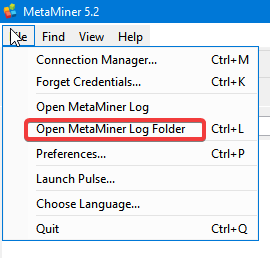
- Start the MetaMiner Client.
- Choose File > Open MetaMiner Log Folder.
- Select all files, right-click and choose Send to > Compressed (zipped) folder.
- Send the zip to support@infolytik.com.
Thread dumps
When MMS seems busy or stuck, a thread dump shows what it is doing at that moment.
- In MMA, choose File > Open Threads Log and copy
threads.log, or include it in a log bundle. - If Infolytik Support asks for a live thread dump, they will guide you through capturing one on the server machine.
- Send the file to Infolytik Support with a description of the problem.
MMS writes thread dumps to threads.log automatically when an action takes too long.
Leave thread dump analysis to Infolytik Support
Thread dumps help Infolytik Support diagnose contention. Do not change your system based on a thread dump without guidance.
Restart the server with clean logs
Infolytik Support may ask you to restart with an empty log folder so the logs cover only the problem period.
- Create a log bundle first if you may need the old logs.
- In MMA, click Stop Server and wait until it stops.
- Choose File > Purge Logs, or delete the contents of
server\logs\in Windows Explorer. - Click Start Server.
Stop before purging
Purge Logs deletes everything in the logs folder. Always stop the server first.